
A dial for your categories
All, Everyday, Documents and Medicine sit on a dial that wraps around, with inertia, snapping and a haptic tick for every step. The page turns with it, and the glow at the top shifts to each category’s colour.
 Expiry reminders for iPhone
Passports, medicine, the milk in the fridge. Snap a photo or say a sentence, and RemindThat remembers when each one expires — then reminds you early, by just the right amount for what it is.
Coming soon to the App StoreFree · iPhone with iOS 16.4 or later · No account needed
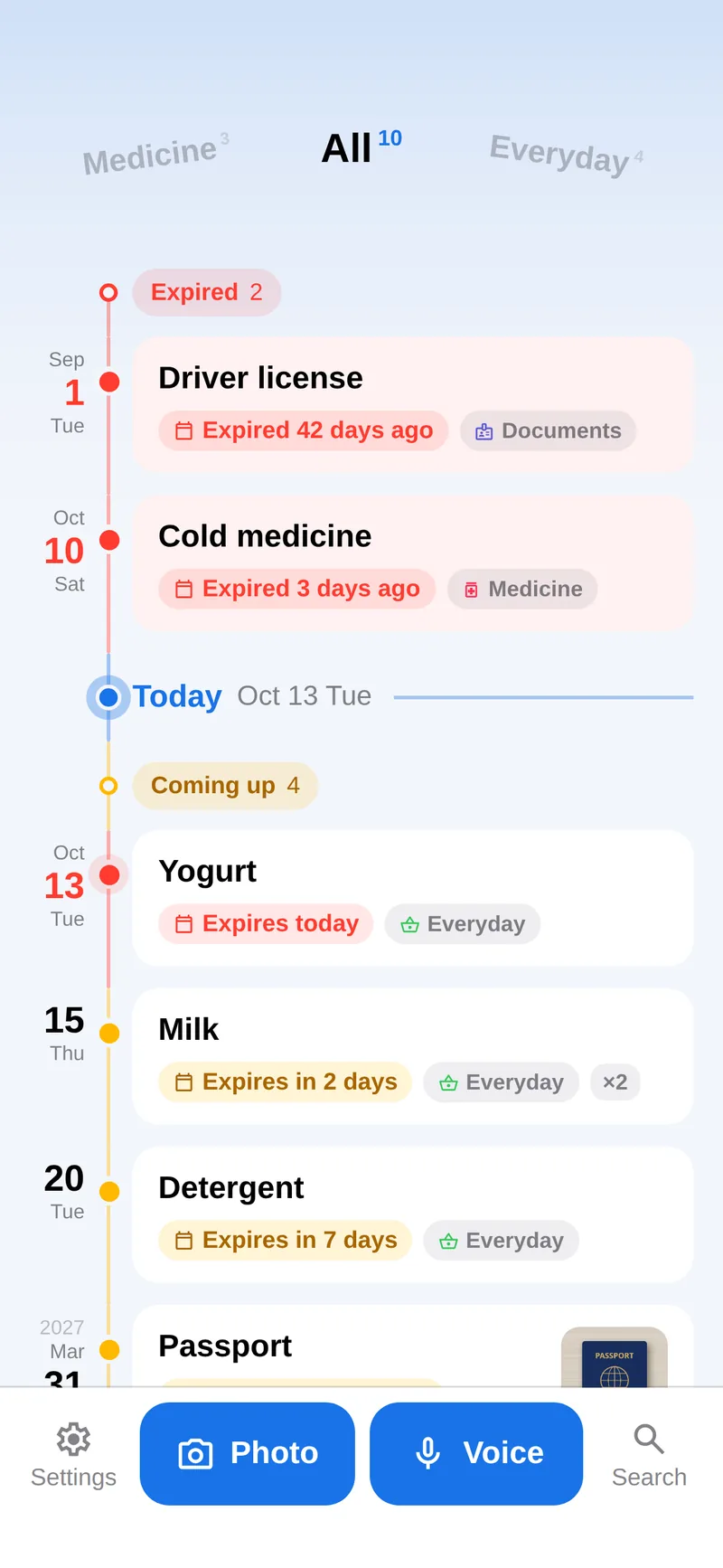
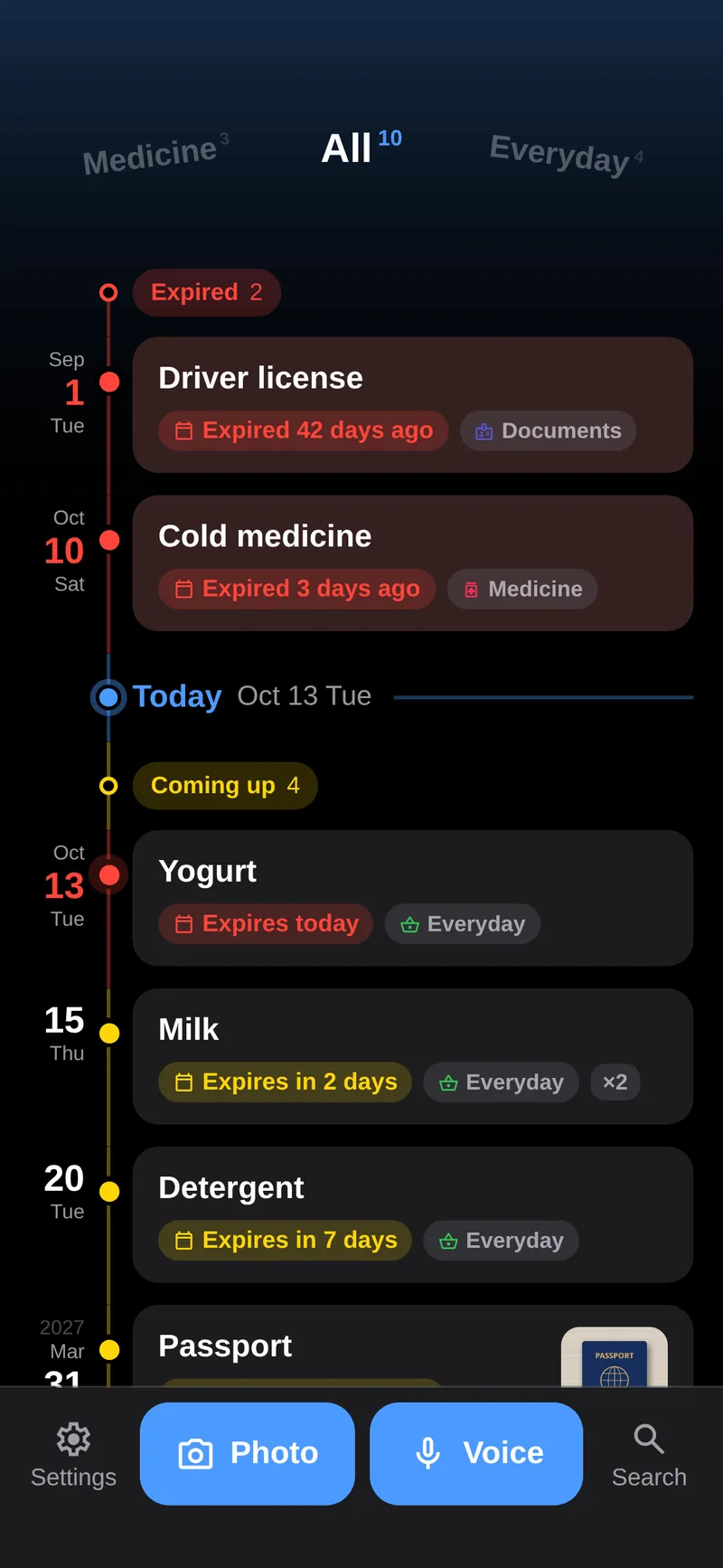
Expired in red, coming up in amber
Why RemindThat
The date is printed right there — on the box, the passport, the carton. We just tend to notice it after it has passed.


Real cards rendered by the app, captured half a year apart.
RemindThat turns “write it down” into one photo or one sentence — and “remind me in time” into a plan that fits what it is.
Capture
However you add something, it lands on one confirm page first, so you can check it before it’s saved.

Point the camera at a box, a card or a label. Apple Vision reads Chinese and English text right on your iPhone and suggests a name, a category and candidate dates. A date only goes in after you tap “Use” — and the app tells you how it got there.
Say what to remember and it’s transcribed on the device by default. “Pay the electricity bill tomorrow at 3 pm” becomes a to-do for 3:00 PM tomorrow, with its own reminder.
Some things never expire — like where you put the spare key. Type it, skip the date, and find it later with search.
One timeline
The All page lays every item out by date, so you can see what’s urgent at a glance.
Expired items sit at the top in red, the oldest first, so nothing slips by.
A blue marker shows where today is, with a soft pulse like a clock’s second hand.
Items inside their reminder window turn amber. A passport four months out already counts; an everyday item four months out doesn’t yet.
Green means there’s still time. Every band is labelled in words too, not just colour.
Things without a date come next, then completed items, neatly stacked — tap to fan them out.
Simple, and fluid
Motion only ever explains what just happened: where something came from, where it went, and whether it worked.
All, Everyday, Documents and Medicine sit on a dial that wraps around, with inertia, snapping and a haptic tick for every step. The page turns with it, and the glow at the top shifts to each category’s colour.
Use one, used up, no longer needed, delete — every action can be undone, and the rest of the list glides into place.
Reminders
Each category has its own rhythm, because a passport shouldn’t be treated like a carton of milk.
Reminders before the expiry date
6 months, 3 months, 1 month and 7 days ahead
1 month, 7 days and on the day
7 days, 1 day and on the day
Pick 3 months, 6 months, 1 year or 1.5 years ahead in one tap, or fine-tune from the same day up to 18 months. AI can suggest one too.
Reminders that fall at the same moment are merged into one: “2 things need attention.” Each item is reminded only on its reminder days, never every day.
Optionally get one summary a day of what has expired or is due soon, or sync reminders to Calendar — kept On My iPhone by default.

AI Assistant · optional
Off by default. Add your own model, and when on-device recognition isn’t sure, AI takes a look: it fixes misreads, completes the item and suggests reminders. You always confirm, and can undo in one tap.
Add as many as you like, fetch the model list from the provider, and switch with a tap.
A built-in role prompt: understand photos and voice, complete each item, plan reminders when it’s needed.
Just the item you’re confirming is sent, straight to the provider you chose. Keys stay in the Keychain.
Works with
Privacy
No account. No server. No analytics or ad SDKs. Your records, photos and settings live on your phone — the developer never sees them.

Apple Vision reads your photos on the iPhone. Photos are re-encoded to strip location data.
On-device recognition is the default. Recordings are never kept — only the transcript.
Export a backup with a SHA-256 integrity check and keep it wherever you like. App data stays out of iCloud device backups.
Turn it on and only the item you’re confirming goes, directly, to the provider you chose.
Off by default. When on, it stays On My iPhone unless you choose iCloud.
Nothing to register or log in to. Delete the app and its data goes with it.
This website doesn’t track you either: no cookies, no analytics, no third-party requests. It only remembers your choice of language and of light or dark, in your own browser.
Read the privacy policyDetails
Front, back, leaflet. Each one is read on the device; the first is the cover.
Save a purchase link and reopen it with a tap when it’s time to restock.
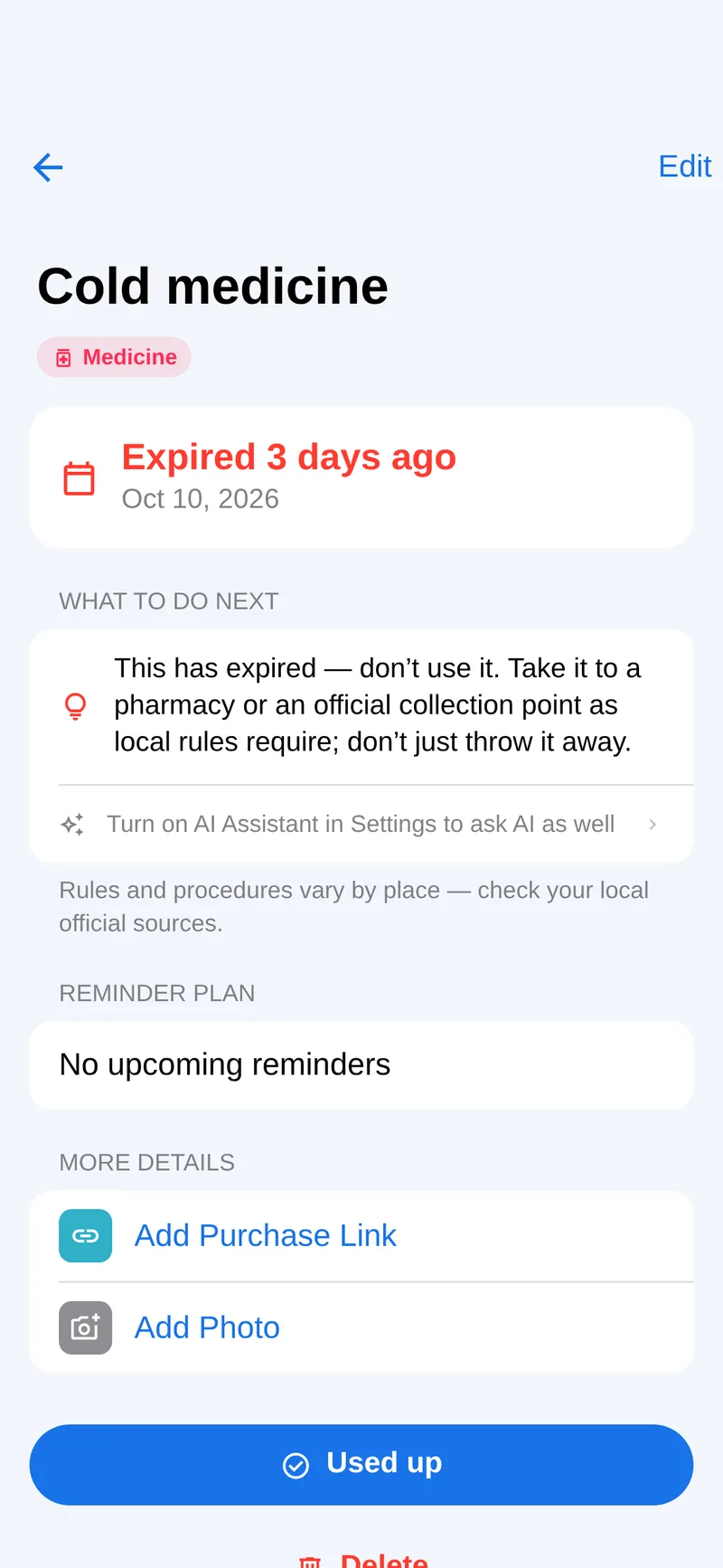
Expired medicine or a document due soon? A short, on-device note tells you what to do — and you can “Ask AI”.
Follows the system, or pick Light or Dark yourself.
Rename, recolour, set lead times and keywords — or start from Fridge food, Pet supplies, Skincare, Insurance or Subscriptions.
Delete, complete, use one — it can all be undone. Restoring a backup keeps your old data aside.
VoiceOver, Dynamic Type and Reduce Motion are supported throughout.
An English or Chinese interface that follows your iPhone. Speech in Mandarin, Cantonese or English.
Support
Still stuck? Open an issue on GitHub. Please don’t attach API keys, photos of documents or medicine, or backup files.
Get help on GitHubIt’s free. If you turn on the optional AI Assistant, your AI provider may charge you for using its API.
iPhone with iOS 16.4 or later.
No. There’s no sign-up and no server. Your records, photos and settings stay on your iPhone.
Make sure notifications are allowed for RemindThat, and check Focus or Do Not Disturb. Opening the app schedules the upcoming reminders, so dates further out may only be scheduled the next time you open it. Several reminders at the same moment are combined into one notification.
Nothing is saved until you confirm. A candidate date only goes in after you tap “Use”, and you can edit every field. A date with only a month and year is set to the last day of that month, and the app asks you to check it.
In Settings › Backup & restore, export a backup, then restore it on the new phone. It includes records, photos, categories and reminder settings, but not AI API keys. The file has an integrity check but isn’t encrypted, so keep it somewhere safe. Restoring replaces what’s on the phone, and the previous data can be brought back from Settings.
The app is in English and Simplified Chinese and follows your iPhone’s language. Text recognition reads Chinese and English. Speech recognition works in Mandarin, Cantonese and English; working out dates and quantities from what you say is most complete in Mandarin.
Only if you turn it on and add your own model. Then only the item you’re confirming (its recognised text, and its photos if your model accepts images) is sent directly to the provider you chose. “Ask AI” on the detail page sends only the name, category, expiry date and note.
Delete a record in the app, or uninstall the app — uninstalling removes all of its records and photos.
Free for iPhone. No account needed.
Coming soon to the App Store